Find the work. Know what matters. Keep delivery moving.
Vision is the flexible work delivery platform from Nano X. Bring projects, tasks, customer engagements and operational work into one connected place—and give each team a focused way to work.
A task can appear in your personal work, a project, a board, a timeline and a report. Its identity and history stay connected, so you can change perspective without creating another copy.
Follow the example below to see how a request becomes reviewed work and a clear handover.
Explore the workflowIllustrative example
DELIVERY STEP 1
Capture the outcome
A customer needs a clear onboarding plan. Record the request, the expected result and the person responsible.
One source recordNamed owner
DELIVERY STEP 2
Make the next action visible
Break delivery into useful steps. Connect dates and dependencies so the team can see what must happen next.
Shared task contextConnected dates
DELIVERY STEP 3
Keep the decision with the work
The assigned reviewer inspects the evidence and records a response before the configured workflow advances.
Review evidenceRecorded response
DELIVERY STEP 4
Finish with an accepted next step
For an engagement handover, identify the recipient, remaining work and first action. Ownership transfers through explicit acceptance.
A Frame is your organization’s boundary. Work Areas create focus inside it. Optional folders organize work, projects hold delivery context, and tasks carry the next action.
Vision’s strength is the connection between finding work, moving it forward and understanding its impact. You can work in the view that suits you while keeping ownership, evidence and follow-through together.
Start here accepts everyday questions and searches the Vision records you can access. Common questions about priorities, zombie tasks and projects behind schedule use recorded data directly. Results link back to the source.
Focused Work Areas reduce noise. The global God’s eye views let you look across the current Frame when you need the bigger picture. Search and global views still respect access.
Owners, due dates, dependencies, approvals and activity live alongside the work. Configured Work Pack review gates help work move through the agreed process. Engagement handovers keep the outgoing lead accountable until the recipient accepts.
The value is a connected path: request → delivery → review → handover. Your team still supplies the decisions and evidence that make the process meaningful.
Choose Work Area views, add task fields, organize projects and enable relevant Work Packs. One team can manage a delivery board while another works from a grid or sprint rhythm.
Configuration changes how people work with the shared engine. It does not require copying the same task into separate departmental systems.
Explore the workflowIllustrative example
A DIFFERENT PERSPECTIVE
See how work is flowing
Use columns and lanes to inspect status, priorities and the next move. Open a card to work on its original record.
FlowShared records
A DIFFERENT PERSPECTIVE
Inspect and update the details
Work in compact rows with filters and inline properties. Labels stay compact; task context remains a click away.
DetailsSame records
A DIFFERENT PERSPECTIVE
See what the dates depend on
Inspect the delivery sequence. Drag eligible scheduled work, then review affected dates and dependencies before saving.
A team can plan a sprint, respond to an incident, create a linked follow-up task, review a change and record the time spent—all while keeping the delivery context connected. Service operations and project delivery do not have to become separate islands.
Vision fits teams that need both a delivery rhythm and operational accountability. Sprints preserve the commitment, approvals preserve the decision, SLAs expose time pressure, and Briefings make the result understandable to a customer.
Vision is designed to reduce navigation and repeated setup. We do not claim a measured speed advantage over another platform. Workflow behavior depends on configuration, permissions and the records your team maintains.
Core search answers, engagement checks, views and reporting do not need a model call. Optional AI assistance is available with the required access, provider connection and administrator budget.
Guide Start with Vision
THE BUILDING BLOCKS
How Vision fits together
A shallow structure. Plenty of room to work.
Start with an organization boundary and give each team a focused home. You do not need a deeply nested folder tree to make work understandable.
Tasks can connect to projects, documents, milestones, dependencies and supported external tools. Accessible references can cross Work Areas without duplicating records or widening access.
Tasks and documents can also live directly in a Work Area or folder. A project is useful when you need shared delivery context; it is not mandatory for every piece of work.
Guide Start with Vision
GET ORIENTED
Your daily workspace
Three starting points for a focused day.
Start here helps you orient. My Tasks holds your personal work. Heads Up brings attention back to the things that need a response.
Review what needs you, what is up next and what has been completed. Ask a question or use search to open the relevant record. Authorized users can switch between My work and My team.
Your default page is a personal setting. An explicit link to a task or project still takes you to that destination.
Use My Tasks to focus on your work. Confirm owner, priority and due date before deciding what to do next. Personal tasks and shared project tasks serve different purposes; choose the right scope when creating work.
If a legacy assignment cannot be confidently matched to an account, Vision may identify it as needing confirmation rather than guessing who owns it.
Review assigned work, approvals and followed-task updates. New @mentions can bring a permitted recipient back to the relevant work. Engagement obligations appear for named leads, handover recipients and reviewers.
Type @ in a supported task description or comment to choose a person from suggestions. Mentioning someone does not give them access to private work.
These questions use Vision’s recorded work and confirmed identity. A useful answer may explain that no matching records were found or that assignments need confirmation. It should not invent missing information.
Search spans supported records you can access, including work, projects, documents and approved custom-field or engagement context. Ordinary search is broader than the My work summary. Explicit “my” or “my team” questions retain that personal or team scope.
Search does not automatically crawl the web, every connected MCP tool or the contents of arbitrary binary attachments. A hidden record remains hidden.
If a deeper question needs it, Start here can use a configured Claude or OpenAI provider within the administrator’s allowance and required XOS access. Answers use bounded relevant context and link to their sources.
Missing provider setup, unavailable evidence or a budget limit produces an explanation and useful next steps. Typing in the box and common built-in answers do not trigger a model call.
Optional tabs stay in your personal bar for the Work Area or folder on this device. Save view captures a named personal view with supported filters. Delete a saved view or remove a tab when it is no longer useful; the underlying work remains.
Shared Board/List views use their own sharing and ownership controls. A personal saved view should not be mistaken for a shared team configuration.
Authorized owners can choose a built-in Work Area icon by clicking the icon beside its name. Search the icon chooser or restore the default globe.
Double-click the name or description to edit it when authorized. Keyboard and actions-menu alternatives keep these controls available without permanent edit buttons.
A scoped view narrows the work you are inspecting. Bandwidth still considers the person’s other visible commitments so a project filter does not create false availability.
Packs belong to a Work Area. Opening a pack from a folder returns to the Work Area’s scope.
Guide Organize & deliver
THE RECORD OF THE WORK
Tasks & workflow
Give every next step a clear home.
A task connects the action to its owner, dates, discussion, evidence and delivery context. Open it from a list, board, grid or report to work with the same record.
Use the status that reflects the actual work. Configured workflows may require approval or completion evidence before a task can advance. A status change should not stand in for a missing decision.
Use comments and @mentions for collaboration. Keep changes and decisions in the record so the next person can understand what happened.
Labels support lightweight categorization. Custom fields capture structured information such as a customer reference, acceptance date or check. Owners and Admins manage task definitions in Field Library; permitted task editors fill the values below Activity.
Track time from the task when needed. Time permissions and invoice locks still apply even if you can open the task.
A project brings owners, health, milestones, work, documents and updates together. Use its Overview, Work, Timeline and Updates views to move between context and execution.
Drag a scheduled task, project or milestone horizontally to propose a date move. Review the change before saving. Eligible dependent work can move forward as needed to avoid finish-to-start conflicts.
The review makes affected work visible, including accessible relationships outside the current view. Started, closed or controlled work is not automatically shifted. Dates use calendar days; this is not a working-day or critical-path scheduler.
Use Link tasks to add dependencies. A normal drag proposes a date change; link mode changes the relationship. Review conflicts rather than assuming every connected item can move.
Use the project’s Capacity view to inspect visible commitments across projects before adding more work to a person.
A clear goal. A realistic commitment. Room to learn.
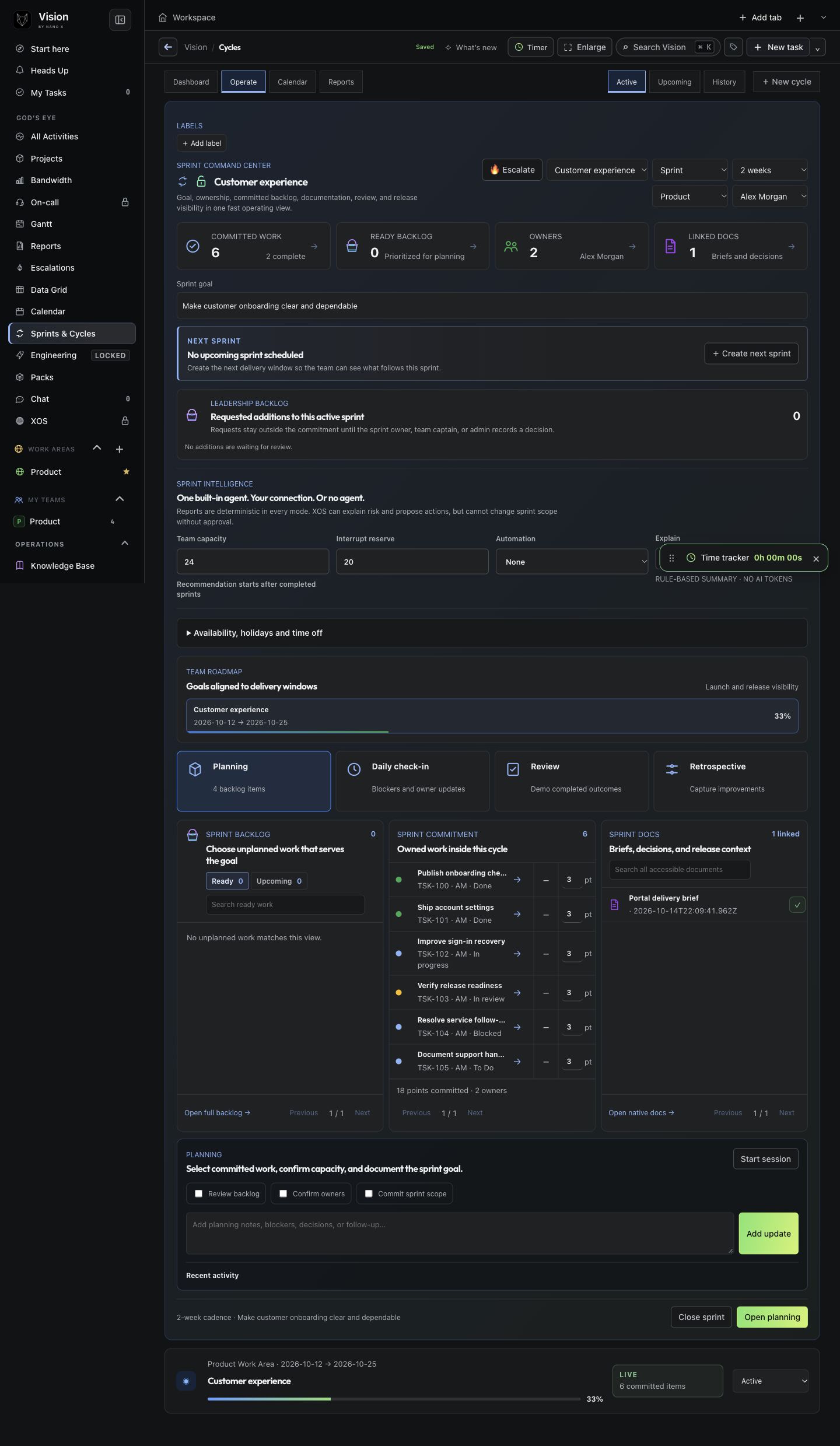
Vision brings the sprint goal, committed work, capacity, documents and review into one operating view. Teams can focus inside a Work Area while leads inspect delivery across the accessible Frame.
Use a Sprint when the team needs a goal, an explicit commitment and a planning, daily check-in, review and retrospective rhythm. Use a Cycle for a lighter repeating focus window. One- and two-week cadences are supported.
Open Sprints & Cycles from God’s eye for a broader perspective, or add it as a focused Work Area view. The sprint stays connected to its original tasks and projects.
Sprint estimates and capacity are planning units, not billable hours. The interruption reserve reduces the capacity available for planned delivery; it is not a time entry.
Define the outcome
Give the sprint a meaningful name, owner, dates and a goal the team can assess.
Select ready work
Choose the backlog items that serve the goal. Confirm owners, dependencies, estimates and useful documents.
Check the whole workload
Use Bandwidth to inspect visible commitments across projects. Set sprint capacity and an interruption reserve for operational work.
Start the commitment
Starting captures the committed scope. The baseline makes later changes visible instead of rewriting the original plan.
Dashboard, Operate, Calendar and Reports offer different perspectives on the same sprint. Delivery signals surface blocked work, incomplete estimates, capacity pressure and progress against the plan. They are prompts to inspect evidence, not promises of an outcome.
Moment
What to do in Vision
Planning
Agree the goal, owners and scope; keep the delivery brief close.
Daily check-in
Inspect blockers and owner updates, then open the actual task to act.
Review
Demonstrate completed outcomes and record the evidence.
Retrospective
Capture improvements and turn the next action into owned work.
An addition to an active sprint needs a written reason. Vision creates a leadership review request; the item stays outside the commitment until an authorized leader approves it with a note. The decision and scope change remain recorded.
This matters when the same engineers handle customer delivery and service follow-up. Urgent work can be considered without silently pretending the original commitment never changed.
Review completed work, remaining scope and the reason for spillover. Close the sprint with its outcome and make the next destination for unfinished work explicit. Completed sprint history preserves the result for later review.
Vision supports the team’s delivery practice. Clear goals, honest estimates, useful reviews and good decisions still come from the team. Core sprint metrics do not require AI tokens.
Guide Keep delivery visible
KEEP CUSTOMER DELIVERY CLOSE
Customer engagements
Customer contact and engineering progress are two different signals.
Use Projects → Engagements to see which customers need attention, when meaningful contact was recorded, and whether engineering progress and handovers are current.
An unanswered attempt is different from a completed customer interaction. Editing a task, importing a record or posting an ordinary comment does not reset either check-in clock.
Use the dashboard to find overdue contact, missing progress, blocked work and handovers awaiting action. Counts open their matching records. Heads Up shows obligations to the relevant people.
Record scope, completed and remaining work, risks, dependencies, evidence and the first next action. Choose the receiving person and an acceptance deadline.
The outgoing engineering lead remains accountable until the recipient accepts. Requested changes require resubmission; a missed deadline raises attention rather than silently transferring ownership.
Contact and progress are recorded by your team. Vision does not infer a customer conversation from email activity or automatically read every message. Imported ownership may need mapping before check-ins can begin.
Service operations connected to the work that fixes them.
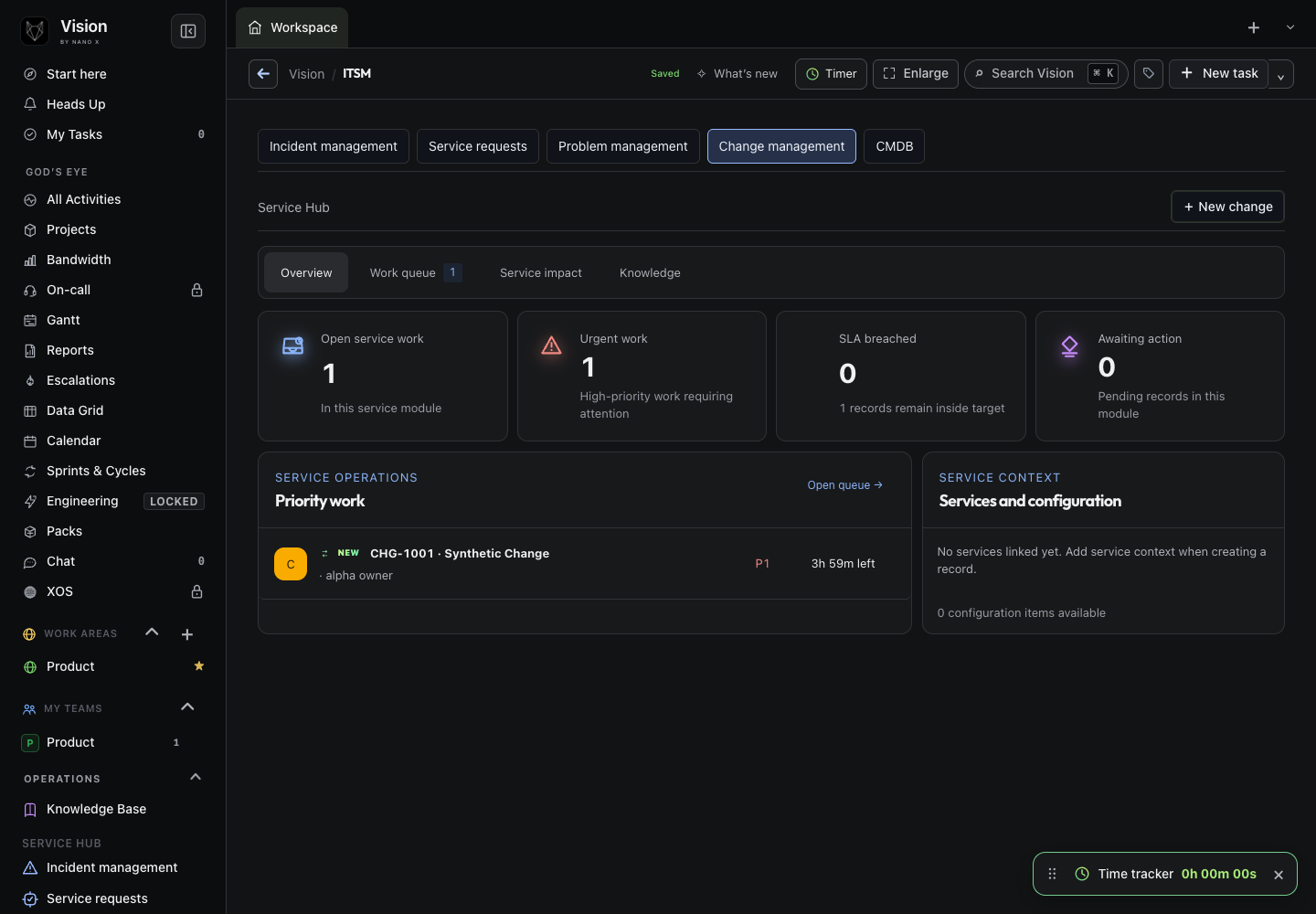
The optional ITSM Pack brings incident, request, problem and change management into Vision’s shared delivery environment. Service teams keep their own queues while engineering follow-up remains connected to projects and tasks.
The incident and its delivery task have different purposes. Resolving the incident does not mean every improvement task is complete. The relationship lets the next person follow the context.
Capture the service context
Record the impact, priority, owner and relevant service or configuration item.
Respond and coordinate
Use the incident record, work notes, escalation and On-call where enabled.
Connect the follow-up
Create a linked Vision task when the investigation needs engineering delivery. Keep its owner and due date explicit.
Review and resolve
Use the appropriate approval and change workflow, record the outcome and retain supporting knowledge.
Search configuration items by name or identifier instead of scrolling a long list. Linked service context helps a reviewer understand what a change could affect.
A follow-up task can participate in a project or sprint through the normal workflow. Active-sprint scope controls still apply; creating an incident does not automatically expand the team’s commitment.
An Owner or Admin configures Administration → Work packs → ITSM Pack and chooses the available modules. The display name can match the team’s language. Module access depends on the Frame’s paid grants; ITSM and CMDB are separately controlled.
Turning a module off retains its records while hiding its navigation and blocking its service actions. Re-enabling an authorized module restores the retained work. Access to private records is still enforced.
Guide Keep delivery visible
MAKE DECISIONS VISIBLE
Approvals & escalations
Put the decision, evidence and accountability in one place.
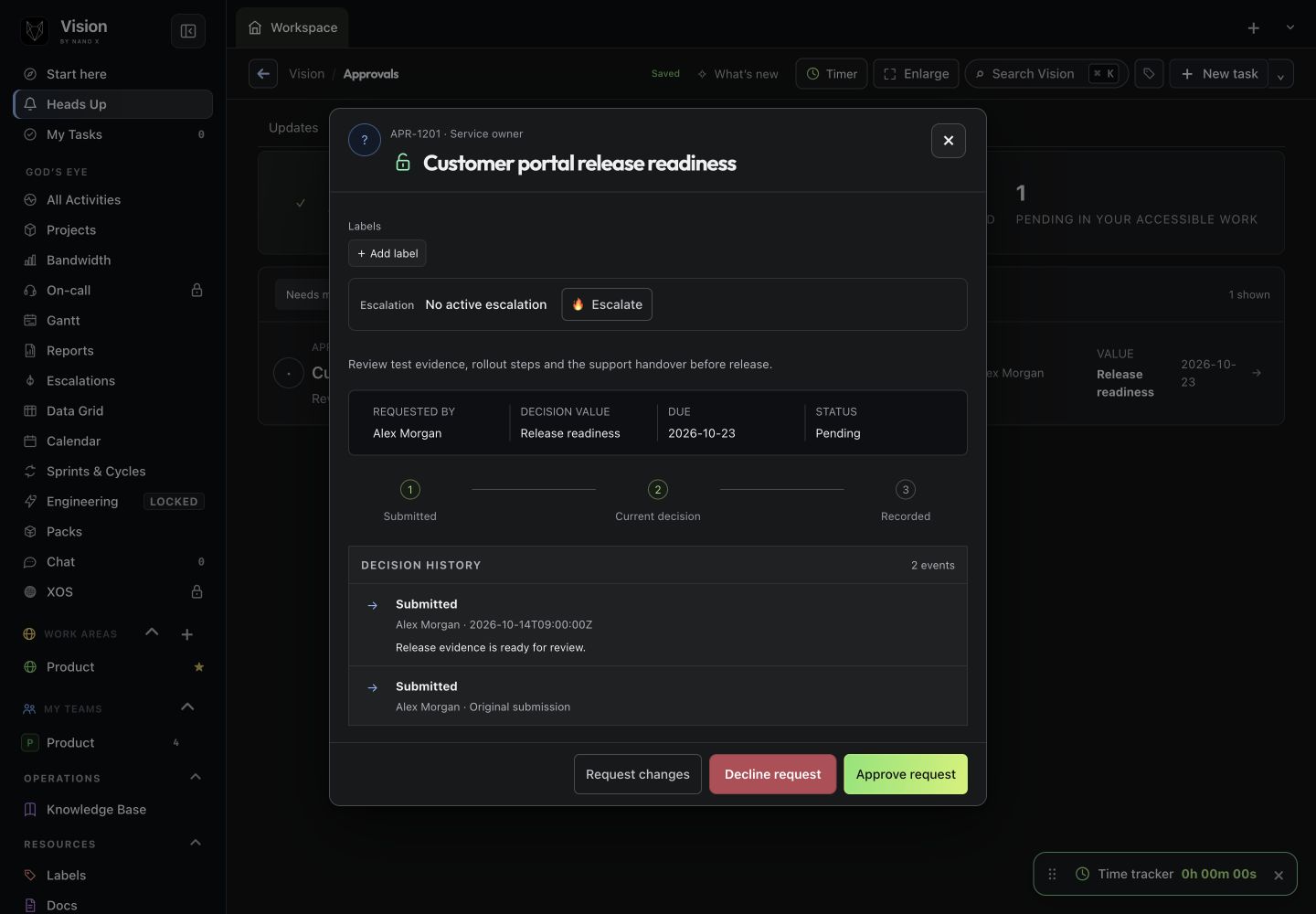
Vision’s approval engine keeps a request and its decision together. Assigned reviewers, required explanations and retained history make the next step clear across delivery, service work and configured workflows.
Describe the decision needed and link useful evidence. The request begins Pending with the submitter and submission time recorded.
Route to the right reviewer
Configured routing and reviewer assignments determine who may decide. Being able to view the record is not permission to approve it.
Record the decision
An authorized reviewer approves, requests changes or declines. Declines and requests for changes require an explanation.
Respond and resubmit
The original submitter can return declined work or requested changes for review with a note explaining what changed. Earlier decisions remain in the history.
Use approvals for supported service decisions, configured Work Pack review gates and sprint scope requests. Each workflow retains its own authorized reviewers and transition rules.
For example, a sprint addition stays out of committed work until leadership approves it. A configured pack stage can require a review before its workflow advances. A generic approval is not a blanket authorization for every linked action.
One assigned authorized reviewer can decide a shared-work request. Do not assume this means unanimous approval, sequential committee review or an electronic-signature contract.
The decision records who acted, when and the required response. A completed decision cannot be rewritten through an ordinary record edit, and requests are retained as audit records.
Review the actual record and current evidence before deciding. For a changed request, explain the change and use the supported resubmission path.
Raise an escalation with the delivery issue, context and outcome you need. The Escalations view brings unresolved work and recorded history together so leads can act on the source.
An engagement attention flag or Heads Up obligation does not automatically create an Escalations record. Use the explicit escalation action when that is the desired workflow.
Know who is covering, where the gaps are and what happens next.
Vision On-call combines the schedule, response queue, handovers and linked follow-up. It helps teams plan coverage and keep incident response attached to the work.
Week, two-week, month and three-month zooms help you inspect different horizons. Shift details preserve exact times and the display timezone. Rotation intervals use elapsed hours, so daylight saving can change the local handoff time.
Create a rotation
An Owner or Admin chooses the team or project scope, eligible responders, shift length and start.
Assign the roles
Set primary and backup responders, with optional shadows. Confirm the acknowledgement window and routing policy.
Inspect the schedule
Use the timeline, zoom, date navigation, timezone, search and My shifts filters to inspect the relevant coverage.
Resolve the gaps
Review missing primary or backup cover and overlapping duty before relying on the schedule.
Use temporary cover or an assignment edit for the selected person, role and time window. Include the reason. Arrange shifts lets an admin drag an eligible primary or backup assignment, review the proposed move and save it.
Moving an assignment does not move the repeating roster. Vacated time becomes an explicit gap to resolve. Canceling the editor leaves the saved schedule unchanged.
Route an accessible incident to On-call manually, or use explicitly enabled automatic routing for eligible high-priority incidents. Responders can acknowledge, escalate to backup, snooze with a reason or hand off with a note.
Acknowledgement stops the response escalation clock; it is not incident resolution. Create a linked task with an owner and due date when follow-up needs its own delivery path. Review Handoffs & history for the recorded sequence.
Project-linked Slack or Microsoft Teams destinations can receive configured notifications. Provider acceptance is not proof that a person has read or acknowledged the incident. The Vision response queue remains the place to confirm response state.
Calendar export is a downloadable schedule snapshot. On-call is a separately granted add-on; it does not include SMS, voice calls or native emergency push alerts.
See the deadline without losing the work’s actual status.
Vision places service-level timing beside the work. A visible target, remaining time and breach state help teams decide what needs attention and keep the response traceable.
Authorized task editors can pause and resume the timer. Pausing preserves the remaining time; resuming sets a new deadline from that remaining duration. These actions are recorded in activity.
Mark the target met when the work satisfies it. Stopping a breached SLA keeps the breach visible; it does not turn a missed target into a success. Starting a new SLA is a separate action.
A task can be In progress or In review while its SLA is breached. Vision preserves the workflow status so the team can continue moving the work without concealing the missed target.
Service-module overviews and escalation reporting expose relevant SLA attention. On-call acknowledgement timing, project targets, engagement check-ins and task SLAs are distinct clocks; one action does not satisfy them all.
The task SLA is a deadline-based elapsed-time control. Do not assume it applies business calendars, holidays, contractual exclusions or a full entitlement engine. Define the team’s operational policy and use the supported controls consistently.
Bandwidth helps you inspect visible assignments across projects. Local filters focus the view without discarding the other commitments you are allowed to see.
A task count is not an estimate of hours. A booking is scheduled demand; it is different from logged time or remaining effort. Missing bookings and inaccessible work prevent a guaranteed availability claim.
Direct and team assignments are considered together so the same record is not counted twice for the same person. Opening a task keeps the source context available.
Discuss the tradeoff, adjust the schedule or reassign work with the responsible people. Bandwidth supports the decision; it does not silently redistribute commitments.
Guide Keep delivery visible
TURN WORK INTO A CLEAR PICTURE
Reports & shared briefings
Understand the source. Share the right snapshot.
Reports help you inspect accessible work and open the records behind the numbers. Briefings turn a reviewed selection into a sharp HTML dashboard for customers or stakeholders.
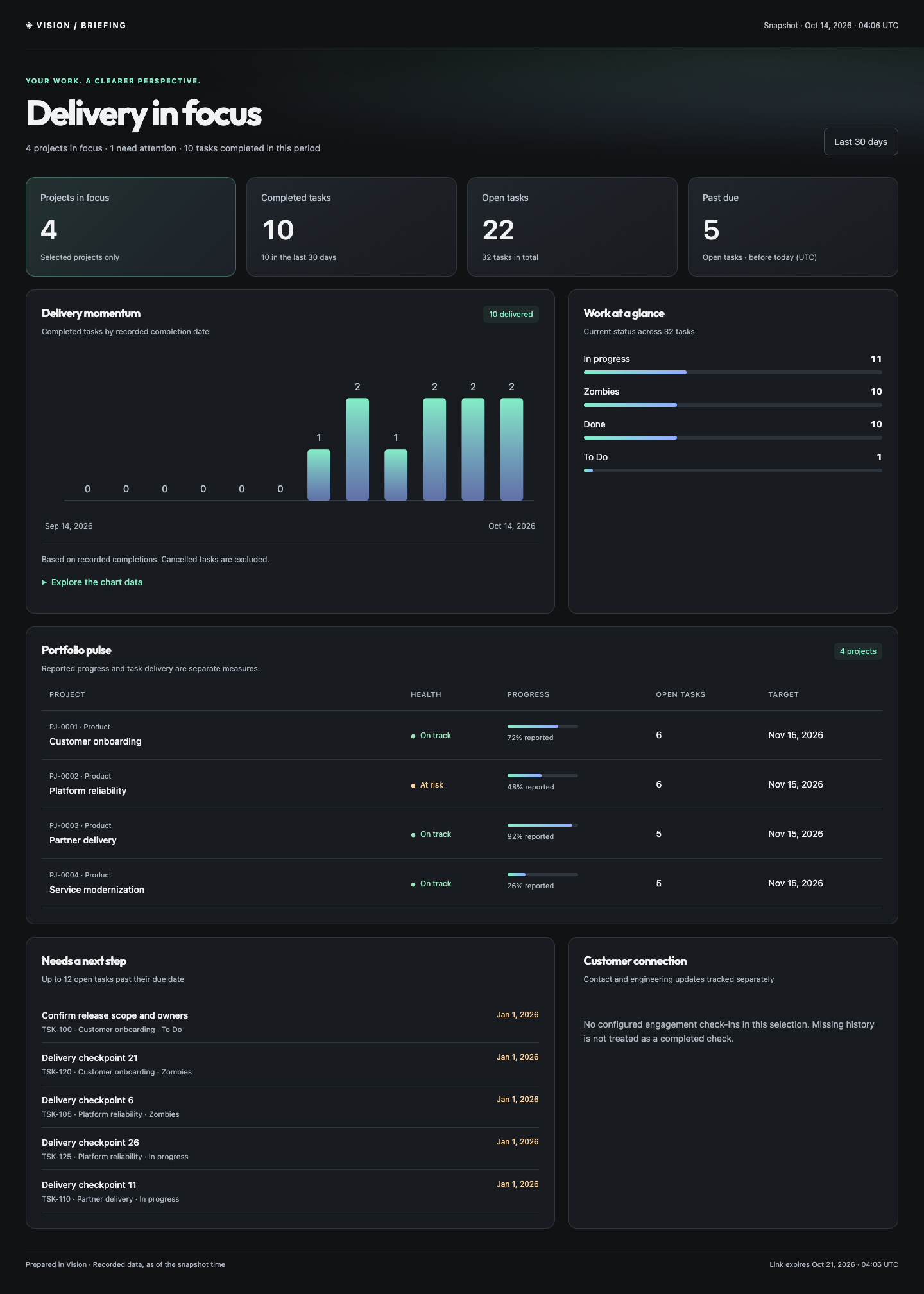
Share a coherent picture of selected projects: delivery totals, completion over time, current work status, reported project progress and overdue next actions. Where engagement check-ins are configured, customer contact and engineering progress remain separate signals.
The actual shared page is HTML with sharp text and SVG charts. Choose Aurora, Ocean or Sunrise for restrained gradient accents over the dark layout. The preview and published page use the same renderer.
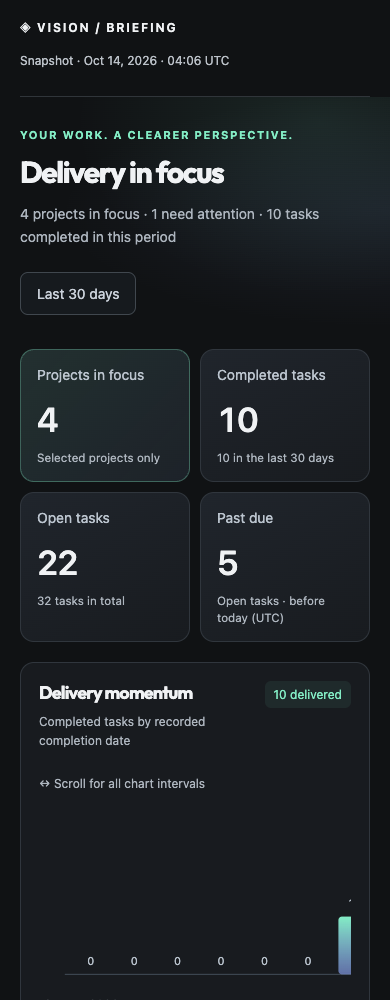
Customer dashboard · synthetic demo data only. No live engagement records are included.View full size ↗
A briefing is a reviewed snapshot, not a live synchronized dashboard. Refresh and publish a new link to share updated data. Links can expire after 1, 7 or 30 days and can be revoked.
Named recipients need an active account in the same Frame and current source access. Public-link publication is an Owner/Admin action and excludes private sources. A downloaded copy cannot be recalled.
Reported project percentage is different from the share of tasks completed. Cancelled work is not delivered work. Customer contact and engineering progress have separate dates.
Use source links inside Vision to investigate a result before making a delivery decision.
The layout adapts to narrower screens. Dense chart and table regions retain their labels and can scroll within their own area. Customers can read the shared snapshot without installing Vision.
For a weekly review, choose the relevant projects and period, inspect missing information, then publish the reviewed snapshot. Use a fresh preview and link for the next review.
The same dashboard at 390px · synthetic demo data.View full size ↗
Guide Adapt & connect
FLEXIBILITY WITH A SHARED FOUNDATION
Work Packs
Give each discipline a workflow that fits.
Functional packs describe what a team does. Industry packs adapt the operating context. Both use Vision’s shared work engine, so teams keep the same records, access controls and history.
Examples include Marketing, Engineering, Finance and accounting, Customer success and Professional services. A pack can supply typed intake, fields, stages, focused views and an assigned-reviewer workflow.
A pack is not a claim that Vision includes every specialized industry system. For example, a Finance workflow is not a general ledger, and a Professional services workflow is not a full customer-billing engine.
Adjust supported fields, labels, stage names and task-section presentation. Keep stable identities and review history as the configuration evolves.
Deactivation retains existing work and history. Hidden sections are a presentation choice, not a security boundary. Paid capabilities still need their own server-granted access.
A Job Billing Work Pack is in design for approved-job timesheets, customer/job/role/employee rates and accounting review. It is not currently available to activate. Existing time tracking and dated per-person rate cards remain separate features.
Open a Work Area or folder and choose New doc. Its current location is used as the starting context. Give the document a clear title, structure the content and link relevant work.
Use the existing document editor for authored content. Tasks can reference documents so people can return to the source without duplicating the explanation.
Start with the purpose and the decision or action the reader needs. Link the evidence, keep ownership clear and record significant changes. Useful titles and structure make search more effective.
Access follows the document and its container. A link or mention does not open private knowledge to another person.
Add supported file, folder or tool references when the source belongs elsewhere. A saved URL is a reference; it does not by itself authenticate an integration or synchronize its contents.
Guide Adapt & connect
RECORD THE WORK ONCE
Time & billing
Connect recorded effort to a reviewed invoice.
Vision’s core time tracking keeps work, recorded effort and invoice evidence together. Use timers or manual entries, review the actual work, then create an invoice using the configured rates.
Owners and Admins can configure Administration → Time tracking with a default policy and per-person exceptions. Approved jobs only requires an explicit task or project approval. Project approval covers current tasks without giving access to private work.
The policy applies to timers and manual entries. Revoking logging access retains recorded time; it does not erase the history.
An Owner or Admin defines per-person rate cards with an effective date, currency and optional task or project scope. Vision first looks for the person’s task-specific rate, then the recorded billing project, then the person default and the existing USD invoice fallback.
The entry’s work date determines the applicable rate. Supported currencies include USD, EUR, GBP, CAD, AUD, NZD, CHF and SGD. Each invoice uses one currency, with no automatic conversion. Admins set tax percentages; a region label does not calculate tax law or payroll.
Invoice history lets you download the saved invoice again. A never-submitted invoice can be voided to release its entries for correction. Downloading does not send an invoice or collect payment.
Choose the period
Open My Time → Create invoice for a period of up to 32 days.
Review eligible entries
Select completed, billable, uninvoiced work. Running or paused timers are excluded; a project is not required.
Confirm the details
Review sender, customer, dates, references, hours, rates and totals.
Create and download
Create the invoice PDF. Vision reserves the source entries against duplicate billing and saves an immutable invoice snapshot.
Where a scoped Stark connection is configured for the person and Frame, explicitly submit the reviewed invoice for accounting review and refresh its status in Vision. The current Stark integration accepts USD. Other supported currencies remain available for PDF download.
Submission is not accounting approval or payment. Keep destination, amount and customer details under review before any external handoff.
The Job Billing Work Pack is in design for a broader customer/job/role/employee rate hierarchy and accounting review. That proposal is separate from the available dated per-person task/project rate cards described here.
Vision connects work to the tools that own the conversation, code and supporting material. Supported integrations have specific scopes; a selected platform badge does not promise a live integration.
An authorized owner can use Connect channel in a Work Area or the project’s connection settings to choose a verified Slack channel. Work Areas and projects can keep independent connections.
Saving the channel does not enable every notification. Choose the event types and explicitly enable updates. Existing Slack intake and interactive actions follow the connected identity and work permissions.
Connect relevant repositories, work and pull requests. Vision can present linked review/check state and delivery context while GitHub remains the source for code, reviews and detailed CI/CD evidence.
Do not treat a linked pull request as approval to merge or deploy. Existing repository controls and Vision’s reviewed actions remain in force.
A tool reference, saved storage link, authenticated connection and active workflow are different things. Verify the connection and supported actions before relying on an integration.
Teams support is not identical to every Slack interaction. MCP access depends on the configured server, tools, grants and review policy.
Guide Adapt & connect
ASSISTANCE WITH BOUNDARIES
AI & automation
Use intelligence where it helps. Keep control of the work.
Vision’s core views and deterministic workflows work without model tokens. Optional XOS assistance adds configured Claude or OpenAI reasoning within administrator controls.
Common Start here answers, engagement deadlines, acceptance checks, views and reporting are based on recorded data and rules. They do not need AI to decide whether a check-in is overdue or a reviewer has accepted a handover.
XOS requires the relevant paid add-on grant, a connected provider and administrator policy. Admins control permitted models, budgets and the kill switch. Fovelets are Vision’s specialist roles.
For deeper Start here questions, automatic fallback can use a configured provider within those allowances. Missing evidence or setup is explained; no answer should fabricate missing records.
Source access, action permissions, approvals and revision checks are enforced by the server. A model response cannot grant itself access or bypass a budget. Start here answers do not execute model-proposed changes.
MCP connections expose only their configured, authorized capabilities. They do not mean every external system is automatically indexed or searched.
Guide Set up your team
DETAILS THAT FIT YOUR WORK
Fields & configuration
Structure useful information without crowding the task.
Use labels for quick grouping and fields for consistent details. Keep the most useful values close to the work and leave configuration with authorized administrators.
Definitions can be renamed, extended with select choices, archived or restored. Their type and location stay fixed after creation to preserve meaning. Archived fields retain recorded values.
Engagement fields have their own existing editor, linked from Field Library. They are not yet one combined catalog with task fields.
Only an authenticated Owner or Admin manages definitions. A locked action leads through administrator sign-in; a shared password does not elevate a member’s account. Existing task edit permissions govern values.
Guide Set up your team
START WITH A CLEAR BOUNDARY
People, access & setup
Set up a useful workspace before expanding it.
A Frame is the boundary for your organization’s people, access, integrations and settings. Keep initial setup focused on a real team and a real workflow.
Frame membership does not mean every person can see every private record. Work Area, folder and record rules still apply. Search, reports, agents and connected workflows preserve those boundaries.
Adding a view, linking a record or mentioning a person does not grant additional access. Test important workflows using the actual member role.
XOS, On-call, CMDB Lite and ITSM Lite require the relevant server-owned paid grants. A pack, prompt or workspace setting cannot grant them. Availability also depends on your deployed release and configuration.
Use the in-product Help center for detailed operational guidance. Contact your Nano X representative for account or onboarding questions.
Guide Set up your team
START WITH WHAT YOU ALREADY HAVE
Bring your work into Vision
Review the destination. Preserve the source identity.
Vision provides import workflows for supported work and engagement exports. A successful migration starts with a clear source, destination and ownership mapping.
A source modification date is not proof of customer contact. Unmatched accounts should remain Needs setup rather than being assigned to a convenient default person.
An import does not create external accounts, grant source-system access or establish continuous synchronization. Keep the original source available until the imported results are reviewed.
Open an imported record, verify its fields and ownership, and run a real workflow with the team. Use the focused Work Area and Engagements dashboard to establish the ongoing operating rhythm.